Quick start · about 15 minutes
Where is what in ElektraWeb?
Every ElektraWeb screen follows the same layout: the menu on the left, the toolbar at the top, lists and record windows. Once you have learnt this layout, you will find the Actions (Eylemler) button, printing, exporting to Excel and the columns on every screen.
Watch these three short videos first
Video in Turkish
Video in Turkish
Video in Turkish
Home screen and menu
The screen you see when you sign in: the menu, the toolbar, announcements.
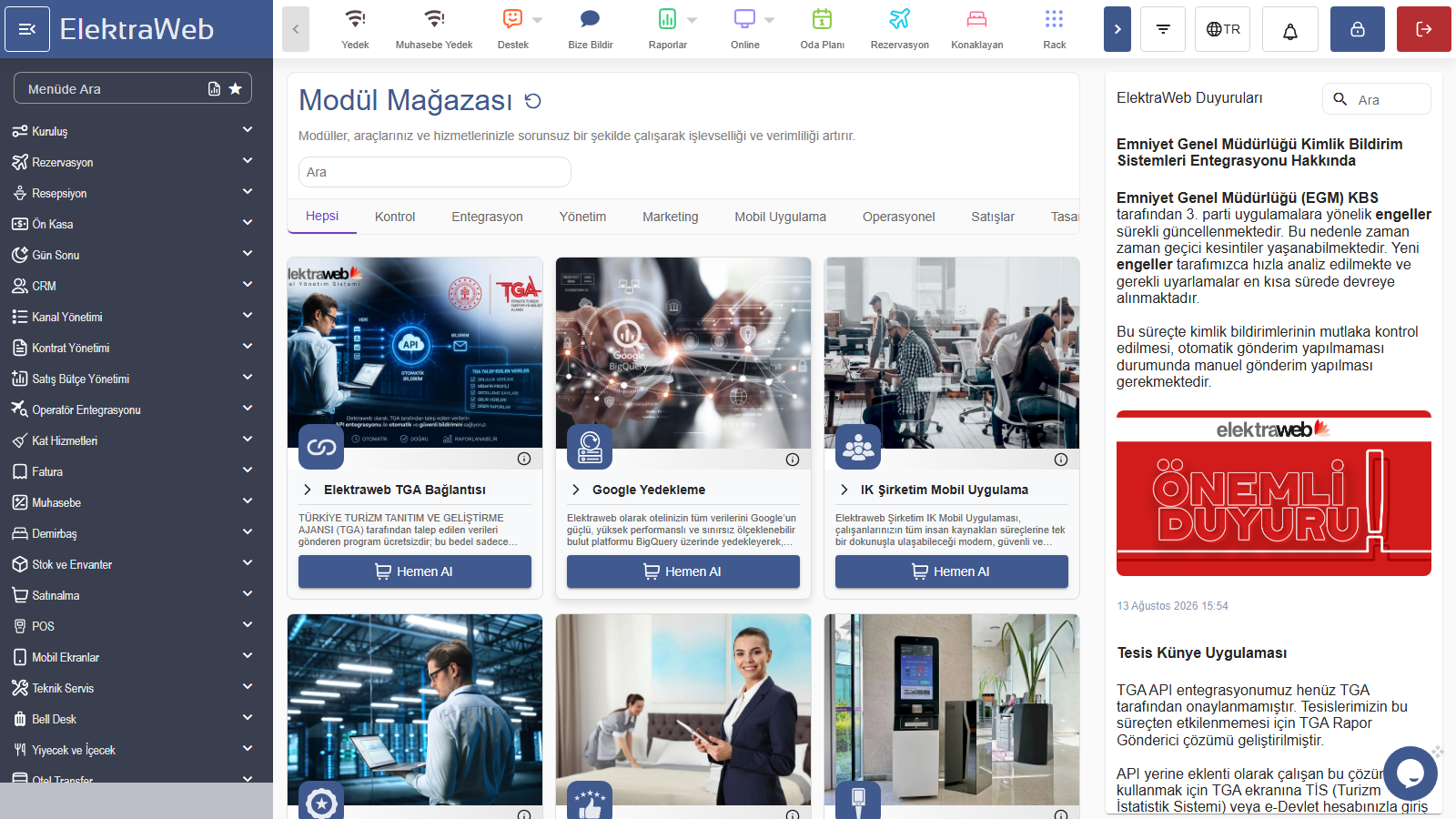 ElektraWeb home screen (demo) · click to enlarge
- Left menuLeft of the screen
- All modules: Reservations (Rezervasyon), Reception (Resepsiyon), Front Cash (Ön Kasa), End of Day (Gün Sonu)… Click a main menu to open its submenus.
- Search Menu (Menüde Ara)Top of the left menu
- Type a few letters of the screen name; the menu shows only the matching screens. The fastest way to find a screen.
- Star (☆)End of each menu line
- Adds that screen to your personal shortcut menu.
- Top toolbarTop of the screen
- Opens the most used screens in one click: Reservations (Rezervasyon), In-House Guests (Konaklayan), Room Plan (Oda Planı), Rack, Reports (Raporlar), Report to Us (Bize Bildir)…
- ElektraWeb logoTop-left corner
- Takes you back to the home page from any screen. The button next to it hides the left menu and widens the screen.
- Language, notifications, Lock (Kilitle), Exit (Çıkış)Top-right corner
- Program language; notifications; Lock (Kilitle) locks the screen when you step away for a moment; Exit (Çıkış) signs you out of the program.
- Announcements (Duyurular)Right of the home page
- Updates and important changes in ElektraWeb are announced here.
- Hotel, user, program dateBottom-left corner
- The user you signed in as and the program date. Check here whether the program date is current (whether the end of day has been run).
List screens
Reservations, in-house guests, folios, stock… Every list has the same buttons.
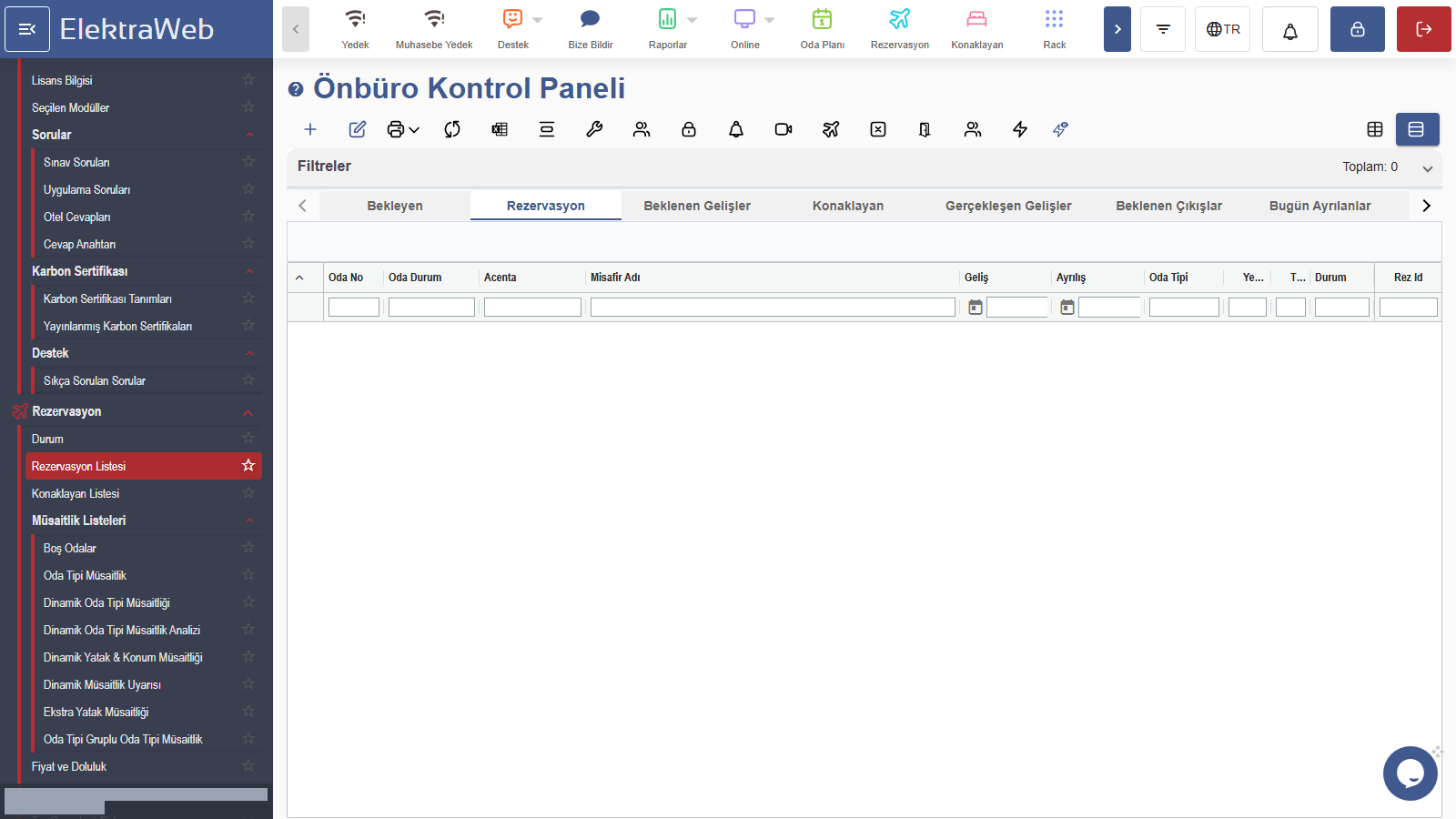 Front Office Control Panel (Önbüro Kontrol Paneli) list (demo) · click to enlarge
- + New (Yeni)Start of the toolbar
- Adds a new record to the list (e.g. a new reservation).
- Pencil: Edit (Düzenle)Next to the + button
- Opens the selected record. Double-clicking a row does the same.
- Print ▾ (Yazdır)Toolbar
- Prints the list with the columns on screen. Click the arrow next to it for ready-made forms (e.g. confirmation, folio).
- Refresh (Yenile) and ExcelNext to Print
- Refreshes the list; sends the list to Excel exactly as it is.
- ⚡ Actions (Eylemler)Right of the toolbar
- Every operation available in that list, in groups: Check-in, Room Change (Oda Değişimi), Folio Transfer (Folyo Transfer), NoShow… Select the row first, then press Actions. Frequently used actions also sit above the list as buttons.
- LogToolbar
- History of the selected record: who changed which field, and when.
- TabsAbove the list
- Split the same list by status: Pending (Bekleyen), Reservation (Rezervasyon), Expected Arrivals (Beklenen Gelişler), In-House (Konaklayan), Expected Departures (Beklenen Çıkışlar)…
- Filters (Filtreler) and Total (Toplam)Above the tabs
- A panel for narrowing the list by date, agency and other conditions; 'Total' on the right is the number of records in the list.
- Column searchBox under each column header
- Searches in that column. Put % at the start to find entries that contain the text (e.g. %yılmaz).
- SortingColumn header
- Click a header once to sort from largest to smallest or from smallest to largest.
- GroupingToolbar / above the column headers
- Drag a column header into the area that opens and drop it; the list is grouped by that column (e.g. by agency, then by room type).
- Column selectionThree lines in the column header
- Choose which columns are shown. If columns have disappeared, bring them back here.
- Detailed / Simple View (Detaylı / Basit)Top right of the list
- The detailed view uses all columns and saved column layouts; in the simple view the columns are fixed.
- SelectionList rows
- Click once to select a single row. Some actions work with several rows (e.g. bulk operations).
Record windows
The window that opens when you open a reservation, a card or a voucher.
- Save (Kaydet)Top of the window
- Saves your changes; the window stays open.
- Save and Close (Kaydet ve Kapat)Top of the window
- Saves and closes the window.
- Close Without Saving (Kaydetmeden Kapat)Top of the window
- Discards your changes and closes. If a question appears when closing, think twice.
- Copy (Kopyala)Top of the window
- Duplicates the open record as a new record with the same details.
- Previous / Next (Önceki / Sonraki)Top of the window
- Moves between records without going back to the list.
- Actions (Eylemler)Top of the window
- Every operation available for the open record (the in-record counterpart of Actions in the list).
- Print (Yazdır)Top of the window
- Ready-made forms for the record.
- LogTop of the window
- The list of changes made to this record.
- Help Mode (Yardım Modu)Menu at the top of the window
- Turns on tips over the fields explaining what each one does.
- Record numberJust below the title
- The record's unique number in the system. If there is no number, the record has not been saved yet.
- Pick-from-list fieldsForm fields
- A list opens as you type. If a record is selected, edit it with the pencil; if what you are looking for is missing, add it with +.
- Date fieldsForm fields
- Filled in with the program date; you can delete it and type, or pick from the calendar.
4. Your first tasks
Tap a task and Dora will explain it step by step (with a video where there is one).
Official resources
For step-by-step training by role: Training paths
Is your team growing?
Get a quote for installation, training for new staff and additional modules. By hotels’ side for 30 years.